Hi @jano,
Thanks for the additional detail. I just upgraded your account from new user, so you should be able to post attachments now.
While you do have an older CPU and graphics card, it should be able to handle the Joulescope data rate. The performance degradation you are describing usually means that the host computer is running out off resources, usually RAM.
-
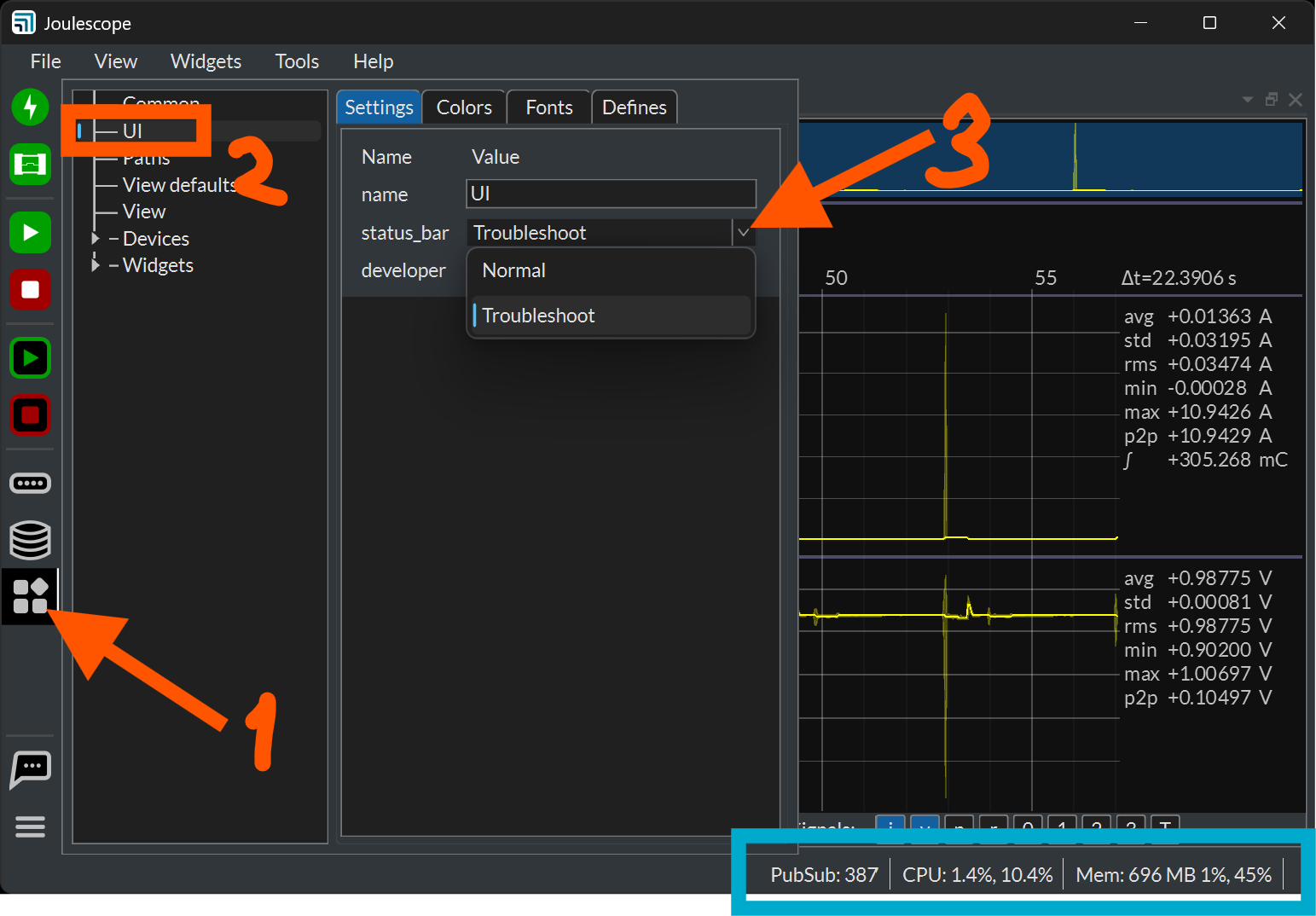
Configure Troubleshooting for the Joulescope UI and watch what happens over time to the resources shown on the status bar:
-
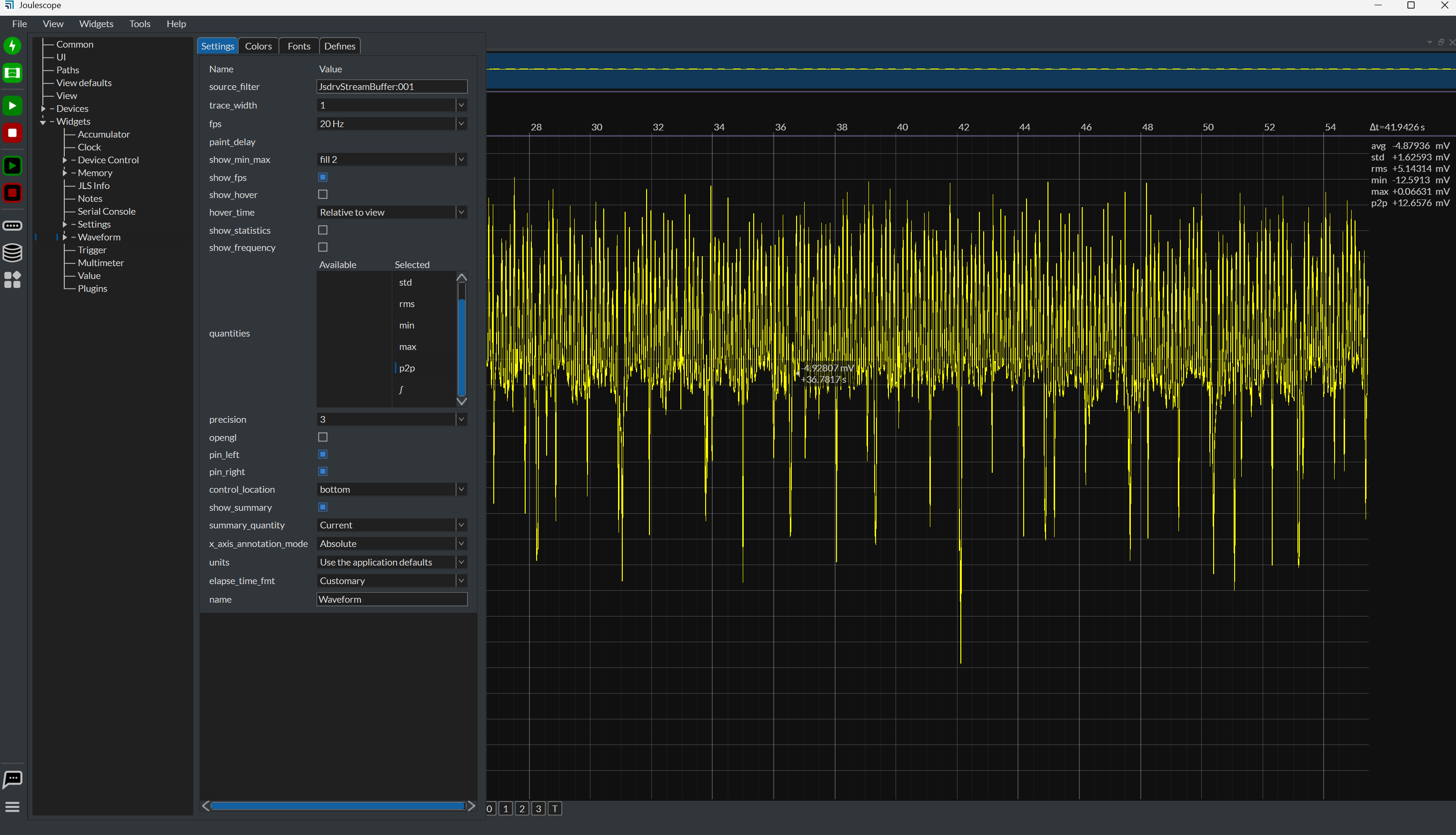
Turn on the fps (frames per second) overlay. Right-click the waveform → Settings → enable Show fps. It draws the live frame rate and per-frame paint time, which gives objective
numbers.
The most common causes of this progressive slowdown on Windows include:
-
Anti-virus / endpoint protection with real-time memory scanning. This is the #1 offender on Windows and it characteristically gets worse over time as the working set grows and the scanner keeps re-inspecting it. Please add an exclusion for the Joulescope UI executable (and your recording folder if you record), then retest.
-
Graphics driver / GPU selection (Quadro P2000). Two things to try: (a) make sure Windows is actually running the UI on the Quadro and not falling back — in
Settings → Display → Graphics, set the Joulescope UI to High performance; and (b) update the Quadro driver (the NVIDIA “Production Branch”/Studio driver is the
most stable for Quadro). If the OpenGL path is misbehaving, the opposite test is also informative: turn OpenGL off on the active waveform (right-click → Settings)
and restart the UI — if that changes the decay, it’s GPU-related. Note that any graphics settings do not take effect until you restart the UI.
-
USB / PCIe power management. Set the Windows power plan to High performance; in Device Manager disable USB selective suspend (and “Allow the computer to turn
off this device to save power” on the USB hub the JS220 is on); and in the power plan’s advanced settings set PCI Express → Link State Power Management → Off.
These can cause periodic stalls that compound over a session.
I had Claude Code write a PowerShell script to do (3)
<#
.SYNOPSIS
    Apply Joulescope-friendly USB/PCIe power settings to prevent streaming stalls.

    For the ACTIVE power scheme:
      * USB selective suspend (AC + DC)            -> Disabled
      * PCI Express Link State Power Mgmt (AC+DC)  -> Off (ASPM)
    Both settings are also UNHIDDEN so they appear in
    Control Panel > Power Options > Change advanced power settings.

    For USB hubs/host controllers only:
      * Clears MSPower_DeviceEnable.Enable, which for these devices normally
        corresponds to unchecking Device Manager > Power Management >
        "Allow the computer to turn off this device to save power".

.NOTES
    Run as Administrator. If saved as Set-JoulescopePower.ps1, just right-click >
    "Run with PowerShell"; it will self-elevate. Applies to the active scheme only.
#>
[CmdletBinding()]
param()

# --- Self-elevate if not already Administrator ---------------------------------
$isAdmin = ([Security.Principal.WindowsPrincipal] `
    [Security.Principal.WindowsIdentity]::GetCurrent()
    ).IsInRole([Security.Principal.WindowsBuiltinRole]::Administrator)

if (-not $isAdmin) {
    if (-not $PSCommandPath) {
        Write-Error 'Not elevated. Re-run this script from an Administrator PowerShell.'
        return
    }
    Write-Host 'Elevating to Administrator...' -ForegroundColor Yellow
    Start-Process -FilePath (Get-Process -Id $PID).Path -Verb RunAs -ArgumentList `
        @('-NoProfile', '-ExecutionPolicy', 'Bypass', '-File', "`"$PSCommandPath`"")
    return
}

# --- Helper: run powercfg and throw on failure ---------------------------------
function Invoke-PowerCfg {
    param(
        [Parameter(Mandatory)]
        [string[]] $Arguments
    )

    $output = & powercfg @Arguments
    if ($LASTEXITCODE -ne 0) {
        throw "powercfg $($Arguments -join ' ') failed with exit code $LASTEXITCODE"
    }
    return $output
}

# --- Well-known power setting GUIDs --------------------------------------------
$USB_SUB     = '2a737441-1930-4402-8d77-b2bebba308a3'   # USB settings
$USB_SUSPEND = '48e6b7a6-50f5-4782-a5d4-53bb8f07e226'   # USB selective suspend
$PCIE_SUB    = '501a4d13-42af-4429-9fd1-a8218c268e20'   # PCI Express
$PCIE_ASPM   = 'ee12f906-d277-404b-b6da-e5fa1a576df5'   # Link State Power Mgmt

# Values: USB selective suspend  0 = Disabled, 1 = Enabled
#         PCIe ASPM              0 = Off, 1 = Moderate, 2 = Maximum

# --- Resolve the active power scheme -------------------------------------------
$activeScheme = (Invoke-PowerCfg -Arguments @('/GetActiveScheme')) `
    -replace '.*GUID:\s*([0-9a-fA-F-]{36}).*', '$1'
Write-Host "Active power scheme: $activeScheme" -ForegroundColor Cyan

# --- Apply power-plan settings to the active scheme ----------------------------
Invoke-PowerCfg -Arguments @('/SETACVALUEINDEX', $activeScheme, $USB_SUB,  $USB_SUSPEND, 0) | Out-Null
Invoke-PowerCfg -Arguments @('/SETDCVALUEINDEX', $activeScheme, $USB_SUB,  $USB_SUSPEND, 0) | Out-Null
Invoke-PowerCfg -Arguments @('/SETACVALUEINDEX', $activeScheme, $PCIE_SUB, $PCIE_ASPM,   0) | Out-Null
Invoke-PowerCfg -Arguments @('/SETDCVALUEINDEX', $activeScheme, $PCIE_SUB, $PCIE_ASPM,   0) | Out-Null
Write-Host '  USB selective suspend -> Disabled (AC/DC)'
Write-Host '  PCIe Link State Power Management -> Off (AC/DC)'

# --- Unhide both settings in the Control Panel UI ------------------------------
Invoke-PowerCfg -Arguments @('-attributes', $USB_SUB,  $USB_SUSPEND, '-ATTRIB_HIDE') | Out-Null
Invoke-PowerCfg -Arguments @('-attributes', $PCIE_SUB, $PCIE_ASPM,   '-ATTRIB_HIDE') | Out-Null
Write-Host '  Unhid both settings in Power Options'

# --- Re-activate so the changes take effect now --------------------------------
Invoke-PowerCfg -Arguments @('/SETACTIVE', $activeScheme) | Out-Null

# --- Per-device: USB hubs/host controllers only --------------------------------
Write-Host 'Updating per-device USB power management (hubs/controllers only)...'
try {
    $usbDevices = Get-PnpDevice -Class USB -PresentOnly -ErrorAction Stop |
        Where-Object {
            $_.InstanceId -and
            (
                $_.FriendlyName -match 'Hub|Host Controller|xHCI|eXtensible Host Controller|Root Hub' -or
                $_.InstanceId   -match 'ROOT_HUB|ROOT_HUB30|USB\\ROOT'
            )
        }
    $usbIds = $usbDevices.InstanceId

    $power = Get-CimInstance -Namespace root\wmi -ClassName MSPower_DeviceEnable -ErrorAction Stop

    foreach ($p in $power) {
        foreach ($id in $usbIds) {
            # MSPower InstanceName is "<PnP InstanceId>_0". Escape the PnP id so
            # any wildcard-significant characters are treated literally by -like.
            $pattern = [System.Management.Automation.WildcardPattern]::Escape($id) + '*'
            if ($p.InstanceName -like $pattern) {
                try {
                    # For USB hubs/controllers, clearing Enable normally unchecks
                    # "Allow the computer to turn off this device to save power".
                    # NOTE: Microsoft documents the MSPower_DeviceEnable boolean as
                    # device-dependent, so this is not guaranteed for every device type.
                    Set-CimInstance -InputObject $p -Property @{ Enable = $false } -ErrorAction Stop
                    Write-Host "  Enable=False  $($p.InstanceName)"
                } catch {
                    Write-Warning "  Could not update $($p.InstanceName): $($_.Exception.Message)"
                }
                break
            }
        }
    }
} catch {
    Write-Warning "Per-device step skipped: $($_.Exception.Message)"
}

# --- Verification --------------------------------------------------------------
Write-Host "`nVerification (active scheme):" -ForegroundColor Cyan
Invoke-PowerCfg -Arguments @('/QUERY', 'SCHEME_CURRENT', $USB_SUB,  $USB_SUSPEND) |
    Select-String 'Setting|Index'
Invoke-PowerCfg -Arguments @('/QUERY', 'SCHEME_CURRENT', $PCIE_SUB, $PCIE_ASPM) |
    Select-String 'Setting|Index'

Write-Host "`nDone. Replug USB devices or reboot Windows for best results." -ForegroundColor Green
Does any of this help?
 . will give an update soon.